

Writing takes up a large part of office work: emails, status reports, meeting follow-ups, social media posts. AI assistants can draft and edit these texts in seconds. But the first result often sounds generic, it may contain facts you never gave it, and it tempts you to paste in data that should stay private.
This is part 2 of Level 1 in our AI Productivity learning path. It builds on the four building blocks from part 1: role, task, context and format. Here you learn the most useful writing and editing jobs, how to keep your own voice, and two complete workflows: a customer email and a short report.
Six writing jobs AI handles well
Most everyday writing tasks are one of six jobs. Each job needs a slightly different instruction, and each comes with its own typical risk.
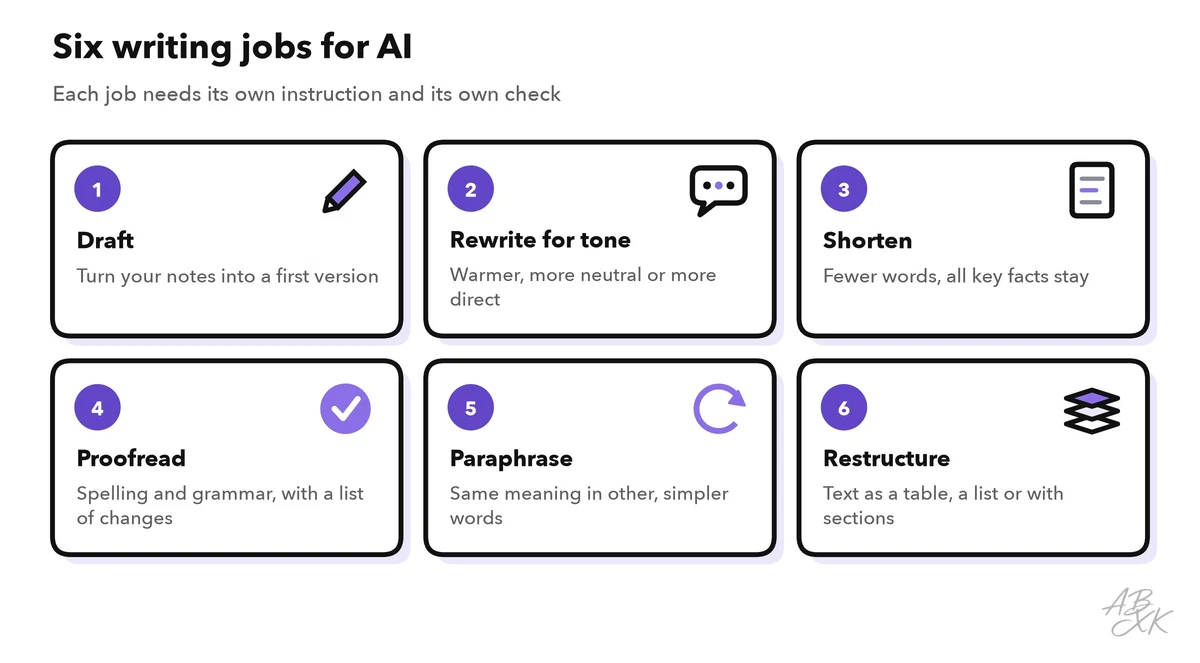
The table pairs each job with an example instruction and the one thing you should check afterward:
| Job | Example instruction | What to check afterward |
|---|---|---|
| Draft | “Turn my notes into an email to the client.” | Did it add facts that are not in your notes? |
| Rewrite for tone | “Make this sound calmer and more polite.” | Does it still say what you mean? |
| Shorten | “Cut this to 100 words and keep all dates.” | Did an important detail disappear? |
| Proofread | “Fix spelling and grammar only. List every change.” | Were names or technical terms “corrected”? |
| Paraphrase | “Say this in simpler words for new customers.” | Is the meaning still exactly the same? |
| Restructure | “Turn this text into a table with three columns.” | Did anything get lost or mixed up? |
Paraphrasing means saying the same thing in different words. General assistants do it when you ask. Specialized writing tools offer it as a separate function: QuillBot, for example, offers paraphrasing, proofreading and summarizing, according to the vendor. Our comparison lists 3 specialized tools for writing and research.



Short descriptions from our tool comparison, based on the vendors' information — not tested by ABXK.
Start from your notes, not from a blank page
The fastest way to a good draft is not “Write an email about the delay.” It is your own notes plus a clear instruction. Notes keep the facts in your hands. The AI only adds the wording.
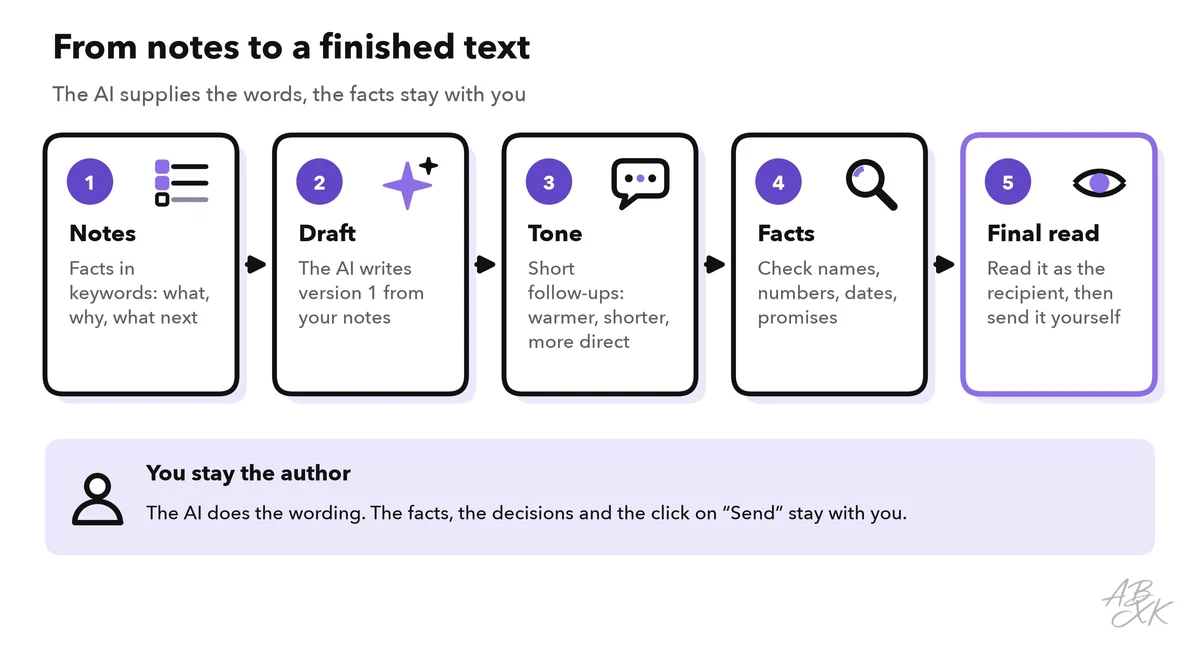
- Notes: Write down the facts in keywords: what happened, what you offer, what the reader should do.
- Draft: Ask for a first version and name the audience, goal, length and tone.
- Tone: Adjust with short follow-ups such as “warmer”, “more direct” or “less formal”.
- Facts: Compare every name, number, date and promise with your notes.
- Final read: Read the text once as the recipient would. Then send it yourself.
Match the tone to the reader
The same message needs a different tone for a customer, your manager or your team. Two questions help: How formal is the relationship? And how much does the reader need to know?
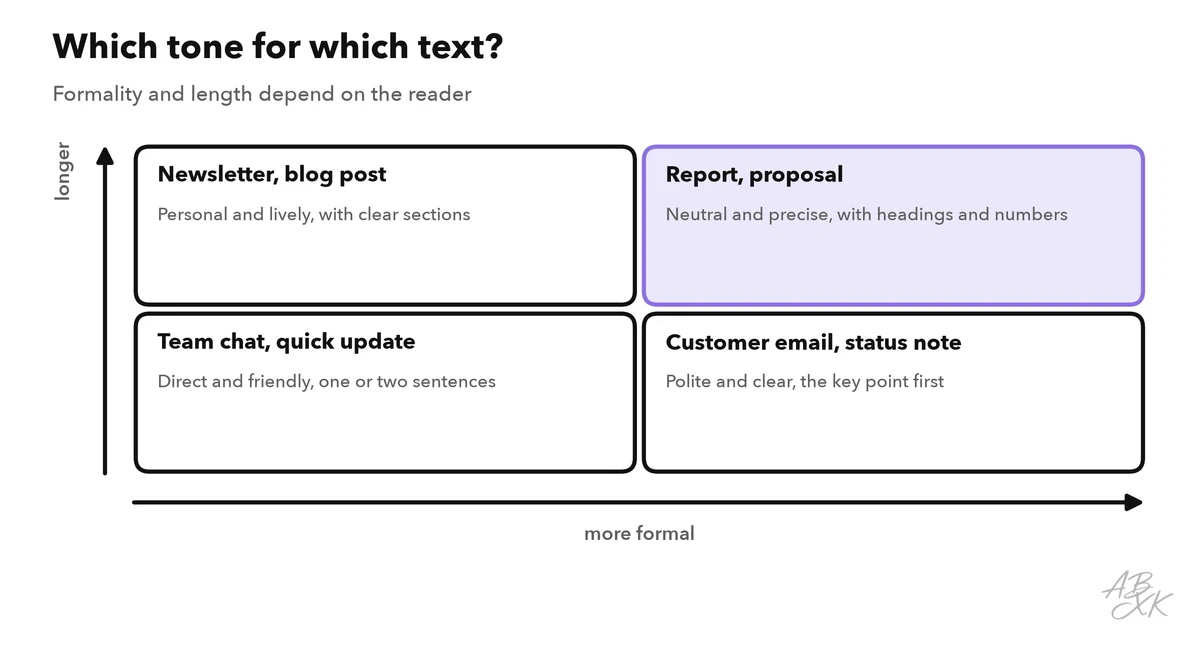
Tell the assistant who the reader is and how you relate to them: “a customer who is complaining for the second time” or “my team, after a long week”. Add two or three tone words, such as calm, direct, friendly. If you have a text whose tone you like, paste it as an example. That works better than a long description.
Keep your voice and avoid the generic AI style
Typical AI text has a recognizable style. It opens with a long warm-up, praises everything, packs ideas into neat lists of three and ends with a vague outlook. None of this is wrong. But it does not sound like you, and readers may trust it less.
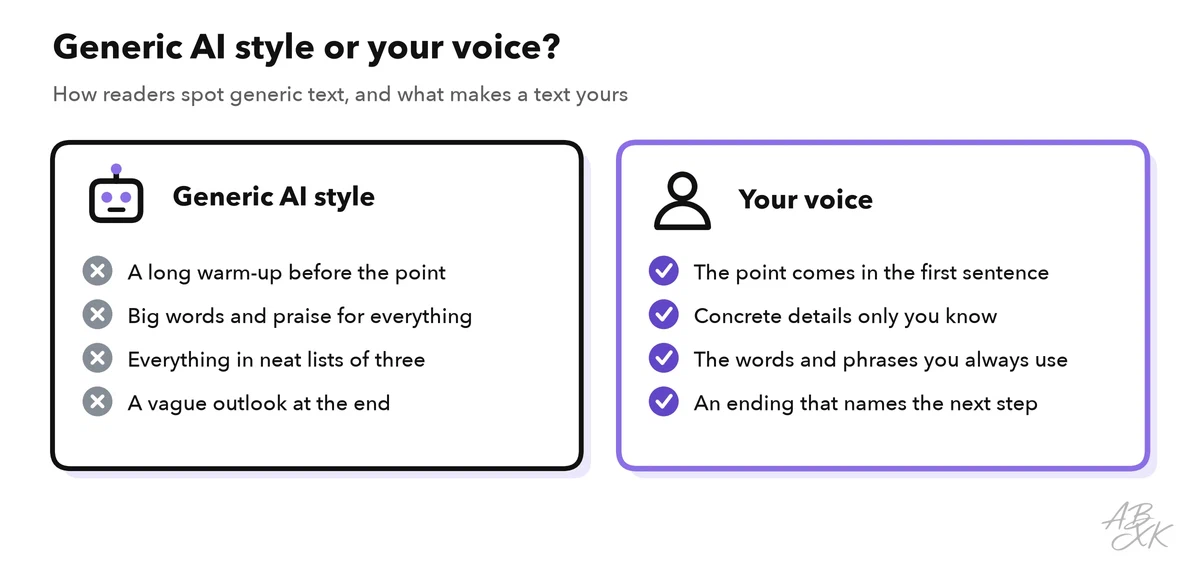
Four habits keep your voice:
- Ask for edits, not rewrites. “Change as little as possible. Only fix clarity and grammar.”
- Show your style. Paste two short texts you wrote and say: “Match this style.”
- Ask for a change list. “List every change you made and why.” This keeps you in control.
- Delete what you would never say. If a phrase sounds strange to you, cut it. Then read the text aloud once.
Generic text that goes out unchecked has a price. Researchers at BetterUp Labs and the Stanford Social Media Lab call AI output that looks polished but lacks substance workslop. In their 2025 survey, people who received it spent almost two hours on each case, asking questions and redoing the work. Before you send an AI-assisted text, ask two questions: does every paragraph say something your reader needs, and could you explain each claim without the tool? If not, make the text shorter instead of more polished.
Check facts and protect your data
A polished text can still be wrong. The most common problem is a detail the assistant added on its own: a date, a number, a product feature or a promise such as “we will refund you within 24 hours”. Treat every specific detail as unconfirmed until you have checked it against your notes or the source. Level 2 explains how to check AI output in more depth.
Two workflows: a customer email and a weekly report
Workflow 1: reply to a customer complaint
A customer writes that their order is late for the second time. Your notes say: the supplier delivered late, the new delivery date is Friday, and the customer gets free shipping on the next order as an apology.
“Draft a reply to the customer email below. Use only the facts in my notes. Tone: calm and friendly, no excuses. Under 150 words, with a clear apology in the first sentence. Customer email: ### [email] ### My notes: ### [notes] ###”
Then refine with one or two follow-ups, such as “Make the second paragraph shorter.” Before you send, check the date, the offer and the customer’s name, and make sure the reply promises nothing extra.
Workflow 2: a weekly status report
Your notes from the week are messy: finished tasks, a few numbers, two open problems.
“Turn my notes below into a status report for the head of department. Three sections: Done, Next, Risks. Under 200 words, neutral tone, all numbers exactly as in the notes. After the report, list anything in my notes that is unclear. Notes: ### [notes] ###”
Check the numbers line by line against your notes. If the report works, save the prompt: next week, you only paste in new notes. Level 3 shows how to keep prompts like this as reusable templates.
Before you send: a one-minute check
| Check | Question to ask |
|---|---|
| Facts | Are all names, numbers and dates correct? |
| Promises | Does the text promise anything you did not decide? |
| Tone | Would you say it like this face to face? |
| Length | Can the reader get the point in ten seconds? |
| Privacy | Did any confidential detail end up in the tool? |