

The best moments of a long interview are usually buried between “um"s, false starts, background noise and detours. In a classic editing program, you find them on a timeline: play, listen, cut, listen again. AI-powered editors take a different route. They turn the recording into text first. You edit the text, and the audio and video follow. The same text then becomes captions, show notes and short clips.
This is part 4 of Level 2 in our AI Productivity learning path. In Level 1, AI meeting notes showed how speech becomes a transcript. Here you work with the recording itself. You edit it through its transcript, clean up the sound and add captions. You turn one long recording into many formats, fix small slips with an AI voice — only with consent — and check everything before it goes out.
How editing through the transcript works
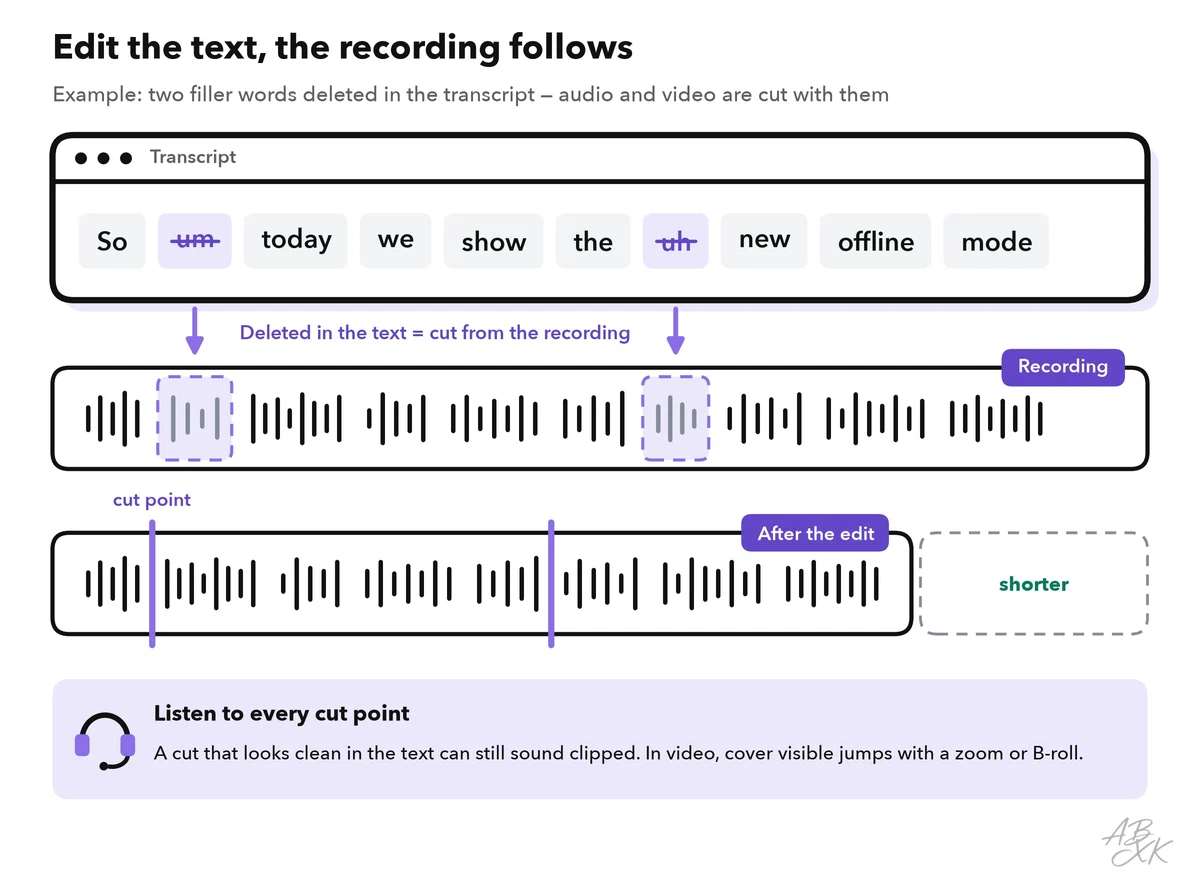
An AI-powered editor first runs speech recognition on your recording. The result is a transcript in which every word has a timestamp: the exact point in the recording where the word starts and ends. Because text and media are linked word by word, a change in the text becomes a change in the recording. Delete a sentence, and the editor cuts that part of the audio and video. Move a paragraph, and the footage moves with it. You can even search the recording like a document — for the moment someone mentions a product, for example.
Descript is one example of such an editor. According to the vendor, you edit audio and video through the transcript, remove filler words, clean up the audio and add captions in one tool.
Two kinds of text changes look the same on screen but do different things:
- Correcting fixes a transcription error, such as a misspelled name. The text and the captions change; the recording stays the same.
- Editing removes or moves words, and the recording changes with them.
Some editors keep the two apart as separate modes. Check which one you are in before you type. Also note that typing a new word into the text does not record it. A new word needs a new recording or an AI voice, which we cover below.
A cut that looks clean in the text can still sound rough. If you cut in the middle of a breath, the speech sounds clipped. In a video of a person talking to the camera, removing a few words makes the picture jump. This is called a jump cut. Listen to every cut point. Hide visible jumps with a slight zoom, a second camera angle, a screen recording or B-roll: extra footage that shows what the speaker is talking about. And keep an unedited copy of the original recording. You will need it for the final check.
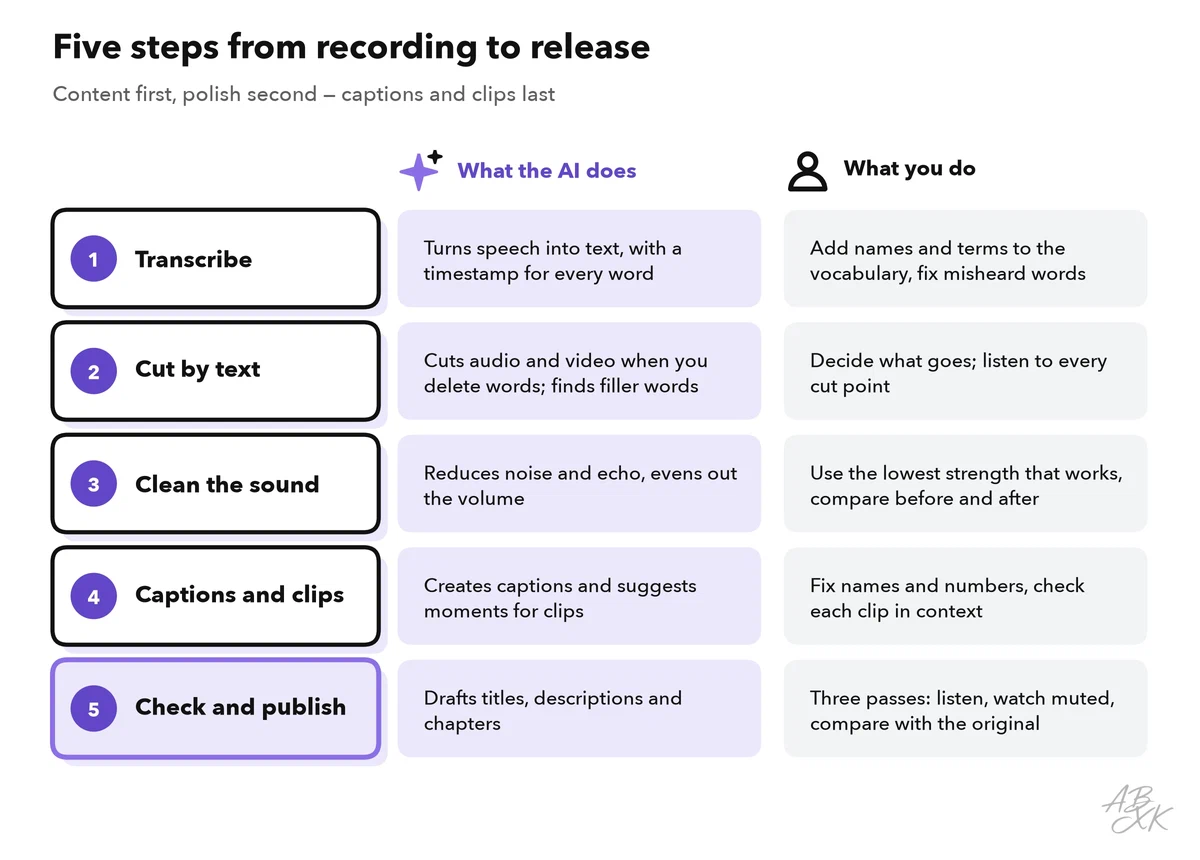
Put together, the work runs in five steps. The order matters: edit the content first, then polish the sound — there is no point cleaning up a passage you will cut later. Captions and clips come last, so they match the final version. The rest of this guide follows these steps.
Clean up the sound: filler words, pauses, noise
Filler words are sounds and words such as “um”, “uh” or “you know” that carry no meaning. Text-based editors can find them all and remove them in one step. They can shorten long pauses the same way.
Do not remove everything automatically. Speech without any pauses sounds rushed, and not every match is a filler: in “I like this feature”, the word “like” must stay. Go through the list of matches, remove what distracts, and shorten long pauses instead of deleting them.
Speech enhancement is an AI filter that reduces background noise and room echo, so that a voice sounds as if it had been recorded in a studio. Descript, for example, calls its version Studio Sound. Such a filter can rescue a recording from a noisy office. Pushed too far, it makes voices sound metallic and can damage music or laughter in the recording. Use the lowest strength that solves the problem, and compare a short passage before and after with headphones.
No filter replaces a good recording: a microphone close to the mouth, a quiet room with soft surfaces and, if possible, a separate track for each speaker.
| Clean-up step | What the tool does | What you check |
|---|---|---|
| Filler words | Finds “um”, “uh” and similar words and removes them | Real words removed by mistake; speech still sounds natural |
| Pauses | Shortens silences to a maximum length you set | Pauses that give a point weight; breaths cut in half |
| Noise and echo | Filters background noise and room sound out of the voice | Metallic voice, missing word endings, damaged music |
| Volume | Evens out loud and quiet passages | Background noise that gets louder in quiet parts |
Captions people can actually read
Once the edit is final, the editor turns the transcript into captions: the spoken words as text on the screen, timed to the speech. Captions help everyone who watches without sound — on a train, in an open office. They also make your video accessible to people who are deaf or hard of hearing. The Web Content Accessibility Guidelines (WCAG), the common standard for accessible websites, list captions for prerecorded video as a basic requirement at Level A (Source: W3C, WCAG 2.2, success criterion 1.2.2, w3.org).
There are two kinds. Open captions are burned into the picture and always visible; they are common in short social media clips. Closed captions are a separate file, for example in the SRT or WebVTT format. Viewers can switch them on or off.
Speech recognition makes the most mistakes on exactly the words that matter: names, technical terms and numbers. If your tool has a custom vocabulary, add those words before you transcribe. Then check the captions for these points:
- every name, product term and number,
- line breaks at natural pauses, with one or two short lines at a time,
- enough time on screen to read each caption,
- no captions over faces or text in the picture — in vertical clips, also keep clear of the edges where the app shows its buttons.
Export caption files last. A file that you exported before the final cut no longer matches the recording once you cut again.
One recording, many formats
A long recording — a webinar, a podcast episode, an interview — holds material for many smaller pieces. Turning it into those pieces is called repurposing. The edited transcript is the hub: text formats are written from it, and clips are cut from the recording at the matching timestamps.
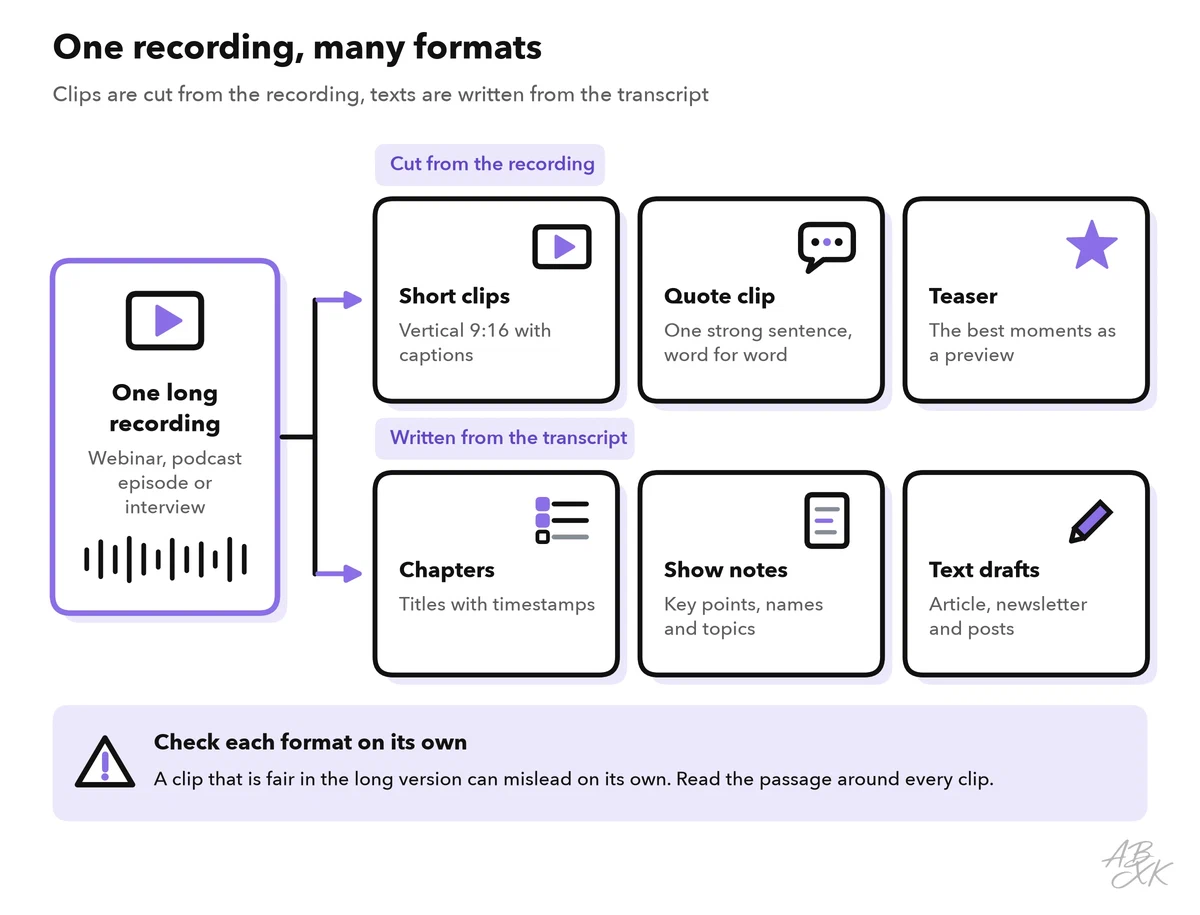
AI helps in three places. It suggests moments that could work as clips. It drafts text formats such as show notes, chapters and social posts from the transcript. And some editors reframe wide video into a vertical format by following the speaker’s face. According to the vendor, Castmagic turns long audio recordings into transcripts, summaries, quotes and social posts.
| Format | Made from | What the AI drafts | What you check |
|---|---|---|---|
| Short vertical clip | One self-contained moment | Suggests moments, reframes to 9:16, adds captions | The clip makes sense on its own |
| Quote clip | One strong sentence | Picks quotable lines | The quote is word for word and fair |
| Chapters | The whole transcript | Chapter titles with timestamps | Timestamps match the final cut |
| Show notes | The whole transcript | Key points, names and topics mentioned | Facts and names; no promises the speaker did not make |
| Article or newsletter | The whole transcript | A first draft | Structure, sources and your own voice |
Clip suggestions need the most care. A tool picks moments that sound catchy, not moments that are fair. A sentence taken out of a longer argument can say the opposite of what the speaker meant. Take “Many people say this is easy. I see it differently.” With one cut, the clip only says “this is easy”. Read the passage around every clip. If guests appear in your recording, let them see their clips before you publish.
In a team, finding the right moment across many recordings can take longer than cutting it. According to the vendors, Shade stores video projects in the cloud with review and approval, automated metadata and AI search, and ngram helps company teams create, edit, brand and localize videos. Our comparison lists 5 tools in the Audio & Video Production area:




Short descriptions from our tool comparison, based on the vendors' information — not tested by ABXK.
If you want to plan text, images, video and voice around one source from the start, Level 4 shows how to build a multimodal content pipeline.
Fix slips with an AI voice — only with consent
Sometimes a speaker says the wrong date or mixes up a product name. The best fix is a short new recording. Some editors and voice tools offer another way: a voice clone, a synthetic copy of a person’s voice made from recordings of it. You type the correct words, and the clone speaks them. ElevenLabs, for example, offers voice cloning, according to the vendor.
A voice clone can say anything, in a voice that listeners trust. That is why it needs firm rules:
- Written consent first. Ask the speaker before you create the clone, name the purpose and keep the consent with the project.
- Correct, do not add. Fix what the speaker meant to say — a date, a name, a number. Never add new statements or opinions.
- The speaker approves the result. Send the corrected passage to the person whose voice it is.
- Disclose where required. YouTube, for example, asks creators to disclose when they synthetically generate a person’s voice to narrate a video, while automatic captions need no label (Source: YouTube, “How we’re helping creators disclose altered or synthetic content”, 2024, blog.youtube). When in doubt, disclose.
- Protect the voice. Limit who can use the clone, and delete it when the project ends or the consent is withdrawn.
Also listen for the seam: synthetic words can sound slightly different from the room around them. The Level 3 part on AI voice and music covers voice cloning in more depth. Voice clones are also the raw material of audio deepfakes; our AI Security section explains how to spot them.
Three passes before you publish
AI editing is fast, and errors slip through just as fast. Before anything goes out, check the result in three passes: listen without the picture, watch without the sound, and compare with the original. Each pass catches different errors, so do all three.
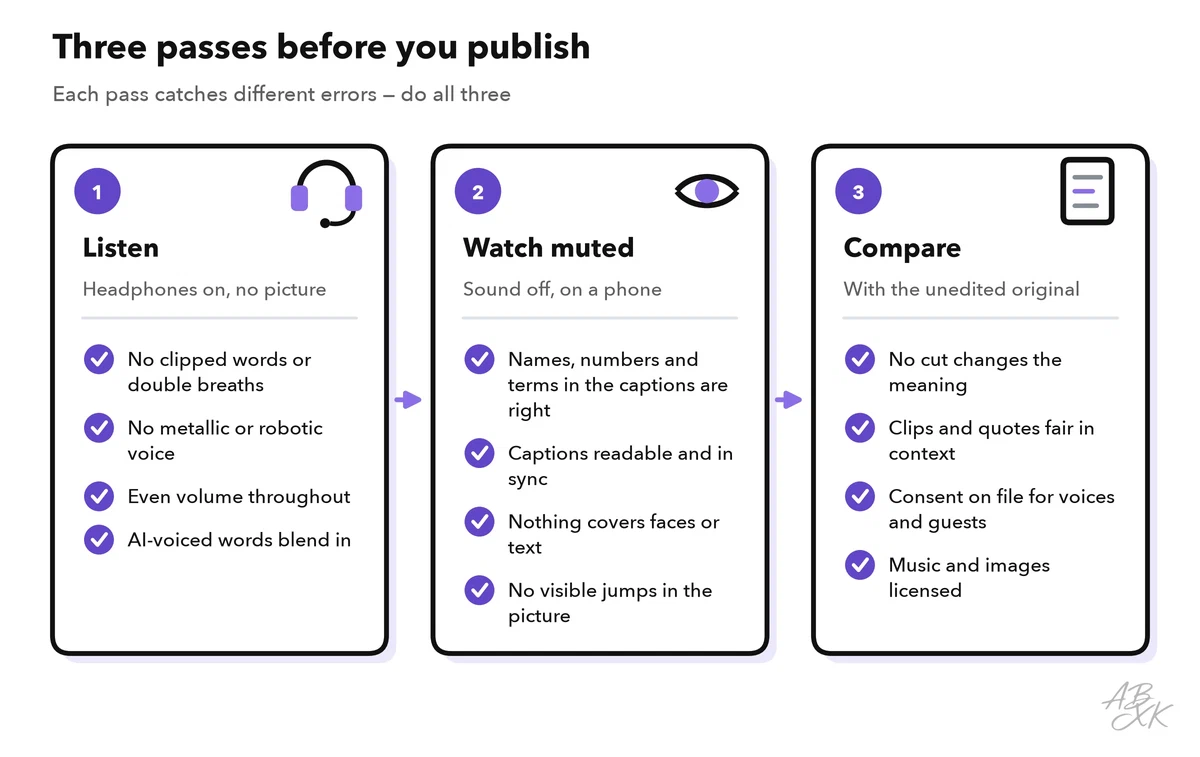
Part 5 of this level shows how to check AI output in general. For audio and video, use this checklist before every release:
| Check | Question to ask |
|---|---|
| Meaning | Does every cut keep what the speaker meant? |
| Cut points | Are there no clipped words, double breaths or visible jumps? |
| Sound | Does the voice sound natural, without a metallic tone or noise that comes and goes? |
| Captions | Are names, numbers and terms right, and timed to the final cut? |
| Clips | Is each clip fair in context, and approved by the guests in it? |
| AI voice | Is the consent on file, the passage approved and the label set where required? |
| Rights | Did everyone shown agree to publication, and is the music licensed? |
| Final device | Did you watch it on a phone, once with sound and once muted? |