

Most people use AI one task at a time: a summary here, a draft there, a few slides before a meeting. Each use saves a few minutes, but the work between the tools stays the same. You still search for notes, copy text from one app to the next and rebuild the same report every week. The bigger gain comes when you connect the steps of a recurring task into one fixed sequence and run it the same way every time.
This is part 2 of Level 3 in our AI Productivity learning path. Level 3 is about automation, integration and measurement. You will learn how to map a recurring task, split it into steps, pick one tool per step and connect the steps with clean handoffs. You will also add templates and quality checkpoints, and you will measure the time you really save. The running example is a weekly report that starts with meeting notes and ends with slides.
Pick a task that repeats
A workflow is a fixed sequence of steps that turns the same kind of input into the same kind of output, run after run. Building one takes a few hours, so it only pays off for a task you do often. These questions help you choose:
| Question | Good candidate | Poor candidate |
|---|---|---|
| How often does it happen? | Every week or more often | A few times a year |
| Is the structure the same? | Same sections, same readers | Different every time |
| Where are the inputs? | In files, apps and notes | In people’s heads |
| How long does it take? | Half an hour or more | A few minutes |
| What does an error cost? | You catch it before anyone sees it | It goes straight to customers or into a contract |
The running example meets all five points. You lead a small team. Every Friday, you write a one-page status report and five slides for the management meeting on Monday. The inputs are the notes from about four meetings, your team’s task list and three key numbers.
Map the task end to end
Before you add any tool, write down how you do the task today, from the first click to the sent email. For each step, note four things: what goes in, what comes out, how long it takes and which app you use. Time at least one normal run with a timer, better two or three, instead of guessing. This first measurement is your baseline: the starting point you compare against later.
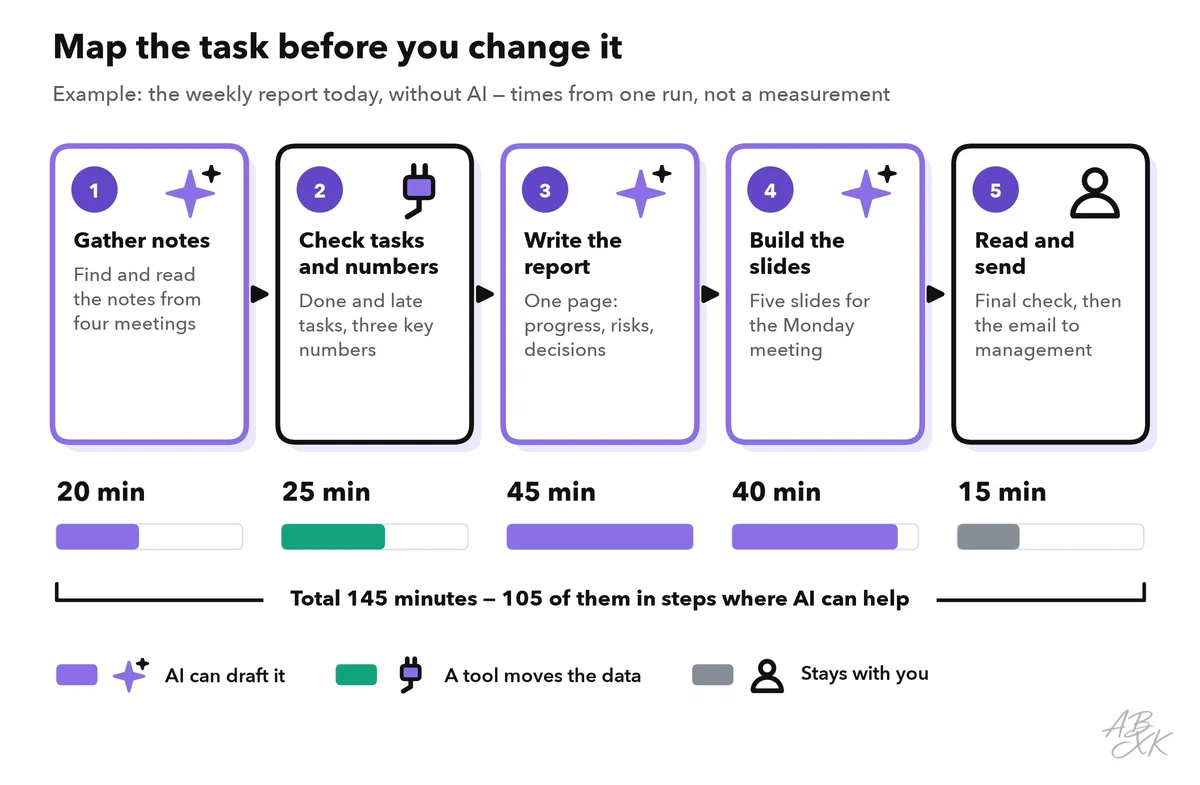
Then mark each step. Text-heavy steps that follow the same pattern every week are candidates for AI: summaries, first drafts, slide layouts. Steps that only move data from one app to another are candidates for an integration. Decisions stay with you: how the report describes a risk, and whether it is ready to send.
The map also shows where time goes before any writing starts. In the example, 45 of the 145 minutes are spent finding notes and checking tasks. That is a good reason to look at the whole chain, not only at the writing step.
Choose one tool per step
Now give each step a tool. Start with what you already have: a general chat assistant and your existing project tool cover a lot. Add a specialist only where it clearly saves time or improves quality, such as a meeting assistant that captures every call without your help. Use only tools your company has approved, because the workflow will handle internal notes and numbers every week.
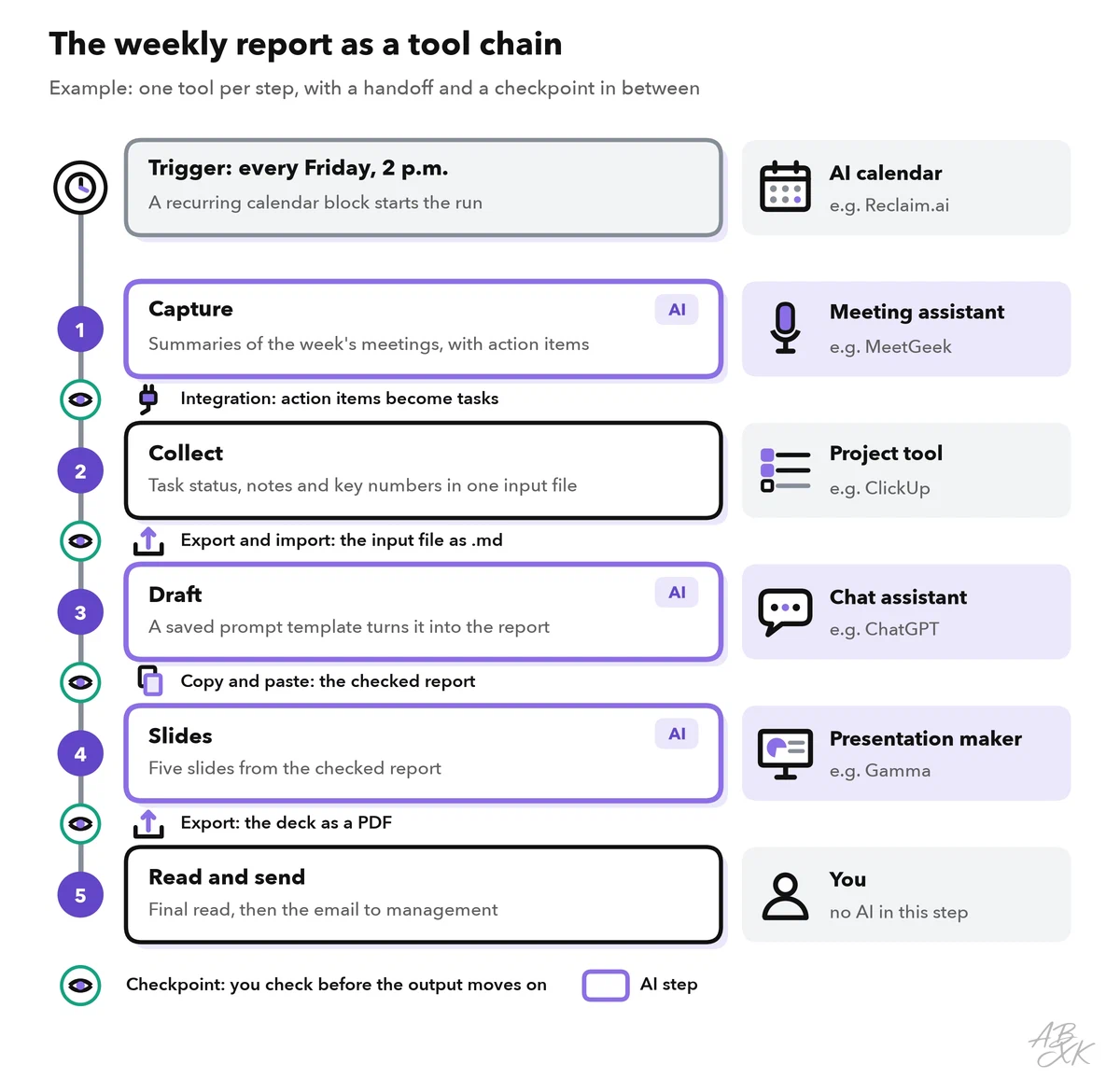
This is how the tools divide the work in the example:
- Capture: A meeting assistant records and summarizes the meetings during the week. According to the vendor, MeetGeek records, transcribes and summarizes meetings and automates the follow-up. Level 1 explains how to get clear meeting notes and action items, including what to tell participants before you record.
- Collect: Your project tool holds the status of every task. ClickUp combines tasks, docs, goals and chat in one app.
- Draft: A chat assistant such as ChatGPT turns the collected input into the report with a saved prompt.
- Slides: A presentation maker turns the checked report into slides. According to the vendor, Gamma creates presentations from a text prompt and can also start from text you paste in. Level 2 shows the full route from outline to finished slides.
Every workflow also needs a start signal, a trigger: a fixed time or an event. Without one, the workflow runs only when you remember it. Here, an AI calendar holds a recurring block on Friday afternoon and moves it when a meeting takes the slot. According to the vendor, Reclaim.ai schedules tasks, habits, meetings and breaks automatically.





Short descriptions from our tool comparison, based on the vendors' information — not tested by ABXK.
Our comparison lists 6 tools for meetings and planning and 3 for presentations and design, so you can replace any link in the chain with a tool that fits your setup better. Keep one rule, though: one tool per step. Two chat assistants for the same step double the checking and add a handoff.
Plan the handoffs between steps
A handoff is the moment the output of one step becomes the input of the next. Many workflows break exactly here: a summary that never reaches the report, a table that loses its columns, a number copied from last week’s file. There are three ways to pass work on.
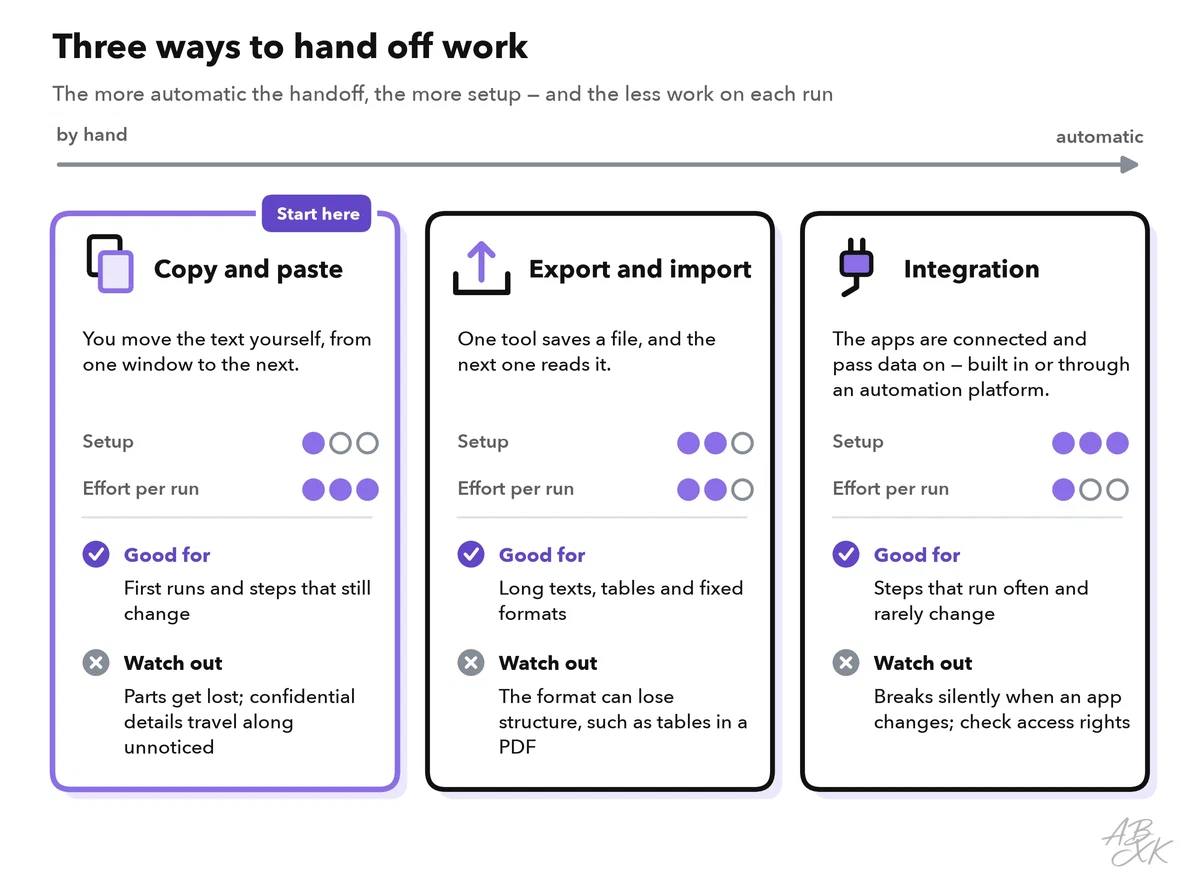
- Copy and paste needs no setup and works with every tool. It is the right way to start, because you see every piece of text that moves. It costs time on every run, though, and it is easy to miss a part.
- Export and import means that one tool saves a file and the next one reads it. This works well for long texts and tables.
- An integration is a direct connection between two apps, so data moves without you. Many apps have built-in integrations. Automation platforms connect apps that have no direct link. They work with a trigger, such as “a new meeting summary is ready”, and an action, such as “create a task”. According to the vendor, MeetGeek can create tasks in ClickUp from the action items of a meeting. Our AI Development section lists tools for agents and automation.
Start every new workflow with copy and paste. Automate a handoff only after it has worked by hand for a few runs. Otherwise, you automate a step you do not fully understand yet.
When you export, the file format decides what survives the handoff. Markdown is plain text with simple marks, such as # for a heading and - for a list item. It is often the best format for passing text between AI tools.
| Format | Good for | Watch out |
|---|---|---|
| Plain text (.txt) | Notes and transcripts; every tool can read it | Headings and tables get lost |
| Markdown (.md) | Text with headings, lists and simple tables | Some apps show the marks as plain characters |
| Word document (.docx) | Text with layout that people read | Layout can get lost when a tool reads only the text |
| CSV (.csv) | Tables such as task lists and key numbers | One table per file, no formatting |
| Reading, printing and sending | Hard to edit; tables can fall apart when a tool extracts the text |
Templates and checkpoints keep every run the same
A workflow only runs the same way every week if its parts are fixed. Three templates do most of the work:
- An input file with fixed headings: Meetings, Tasks done, Tasks late, Key numbers, Open questions. You fill it in during the collect step, so the chat assistant always gets the same structure.
- A prompt template: a saved prompt with placeholders, such as [input file], that you fill in for each run. Part 5 of this level shows how to build reusable prompt templates and custom assistants.
- A slide template with your company design and a fixed order of slides, so the deck looks the same every week.
Then add a checkpoint at every handoff: a short, fixed check before the output moves on. It matters most after steps in which AI produces something. Checks are cheap where errors start and expensive where they end up. A wrong name in a meeting summary takes seconds to fix in step 1. Once it sits on a slide that management has seen, it takes an email and an apology.
| After step | What you check | Typical error |
|---|---|---|
| 1. Capture | Names, owners, numbers and dates in the summaries | A misheard name; “fifteen” becomes “fifty” |
| 2. Collect | Every meeting and every late task is in the input file | Last week’s number is still in the file |
| 3. Draft | Every fact in the report against the input file | A task described as done that is still open |
| 4. Slides | Numbers in charts, slide titles, design | A chart with values that are not in the report |
| 5. Send | Recipients, attachments, confidential details | The report goes to the wrong mailing list |
Level 2 shows a complete routine to check AI output for errors.
Measure the time you really save
A new workflow feels faster from the first run. Whether it really is faster, you only know if you measure. Compare each run with the baseline from your map, step by step, and count everything: starting the tools, waiting for results, checking and fixing.
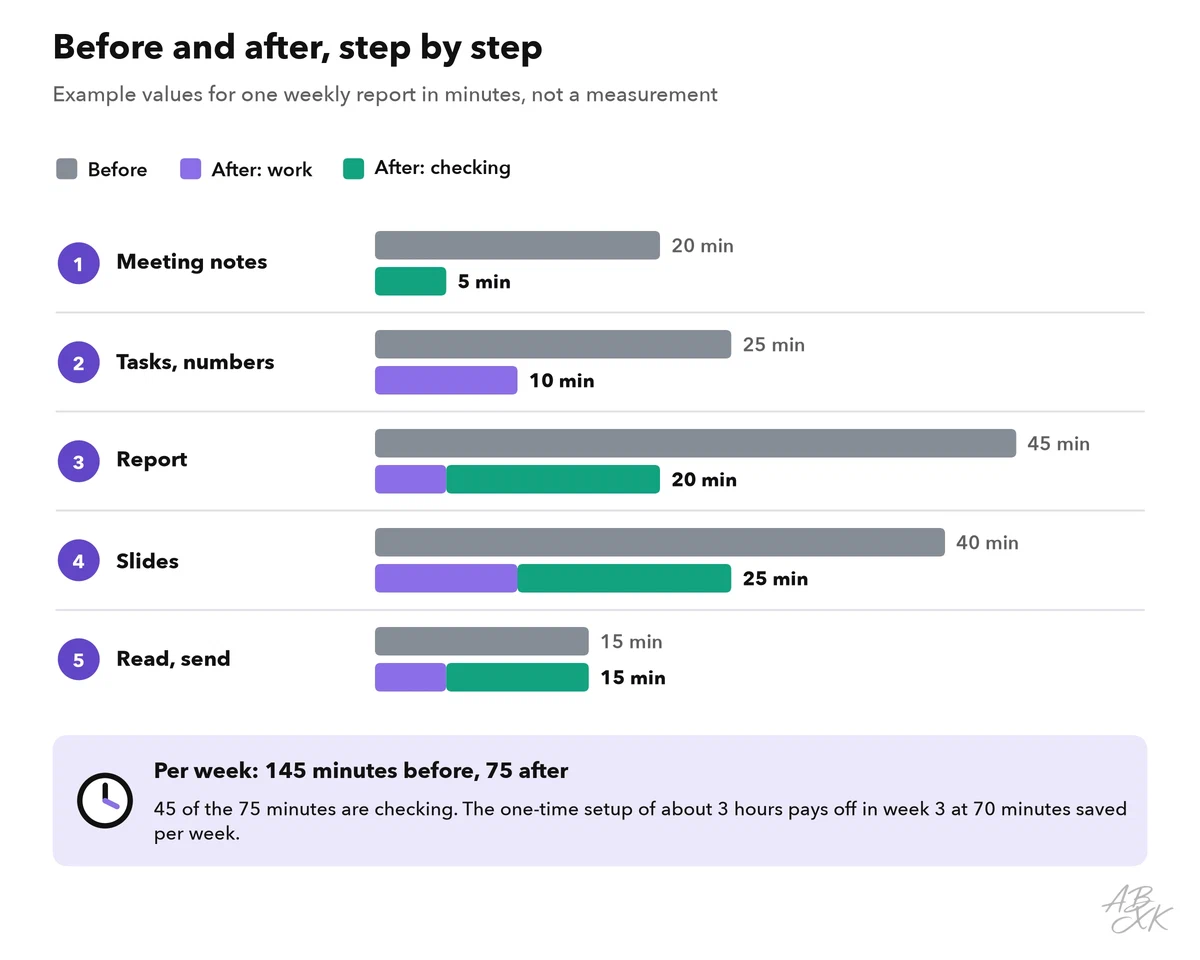
In the example, the report takes 75 minutes instead of 145. Two details matter. First, the largest gain is in writing the report, while the final read takes as long as before: that step stays with you. Second, more than half of the remaining time is checking. That is the price of using AI safely. If your checking time drops toward zero, the workflow has not improved; you have stopped checking.
Count the setup, too. In the example, building the templates and settings took about three hours once. At 70 minutes saved per week, that pays off in the third week, and later if the first runs are slower. Compare at least four runs with your baseline before you decide, because one good Friday proves little. Level 4 turns this into a complete method to measure AI productivity gains, with quality scores and error rates.
Common workflow mistakes and how to fix them
Most problems with personal workflows have little to do with the AI. They come from the way the chain is built and maintained:
| Mistake | What happens | Fix |
|---|---|---|
| Automating before mapping | You speed up a step that should not exist | Map the task first and drop useless steps |
| Too many tools | Every extra tool adds a handoff, a login and a place for data | One tool per step; reuse what you already have |
| No trigger | The workflow runs only when you remember it | Tie the start to a fixed time or an event |
| Silent integrations | A connection breaks, and nobody notices for weeks | Look at the result of every automated handoff in each run |
| Shrinking checks | Errors slip through once the routine feels safe | Keep the checkpoint list next to the workflow and work through it |
| Tool or model updates | The same prompt suddenly gives different results | After an update, compare a new run with an older, checked one |
| No documentation | Nobody can run the workflow when you are away | Write it down on one page: trigger, steps, tools, handoffs, checks |